
Short answer: a good async video bug workflow pairs every short screen recording with a written template (build, macOS version, hardware, steps, expected vs. actual), attaches both to the ticket, and adds logs or crash reports where the bug needs them. The video shows what happened; the template and logs explain where and why. Everything below is a tool-neutral method you can pilot in a week.
One caveat up front: the available sources include vendor marketing and Apple's own documentation, but no independent study showing that video reports cut resolution time. Treat the pilot in this article as how you find out for your own team.
When video helps, and when it doesn't
Video is strongest where text struggles: UI glitches, animation or layout problems, multi-step flows, and anything where timing and cursor movement matter. Apple's own guidance agrees on the UI case: if an issue appears in a user interface, include a screenshot or screen recording, because it can show clues you may not have thought to put in the description.
Video is a weak substitute for other evidence in these cases:
- Crashes, hangs and kernel panics. A clip shows the symptom; the crash log or diagnostic is what an engineer needs. Apple says a Mac System Information Report must be included for crashes, kernel panics, hardware bugs or printing issues when filing with Apple.
- Logic or data bugs where the screen looks fine and the problem is in a log line or a network response.
- Security-sensitive flows where the screen would expose tokens, customer records or internal admin tools.
- Flaky timing bugs. A clip of one failure is useful, but it won't tell you the failure rate. Note how often it happens in the template.
The workflow, step by step
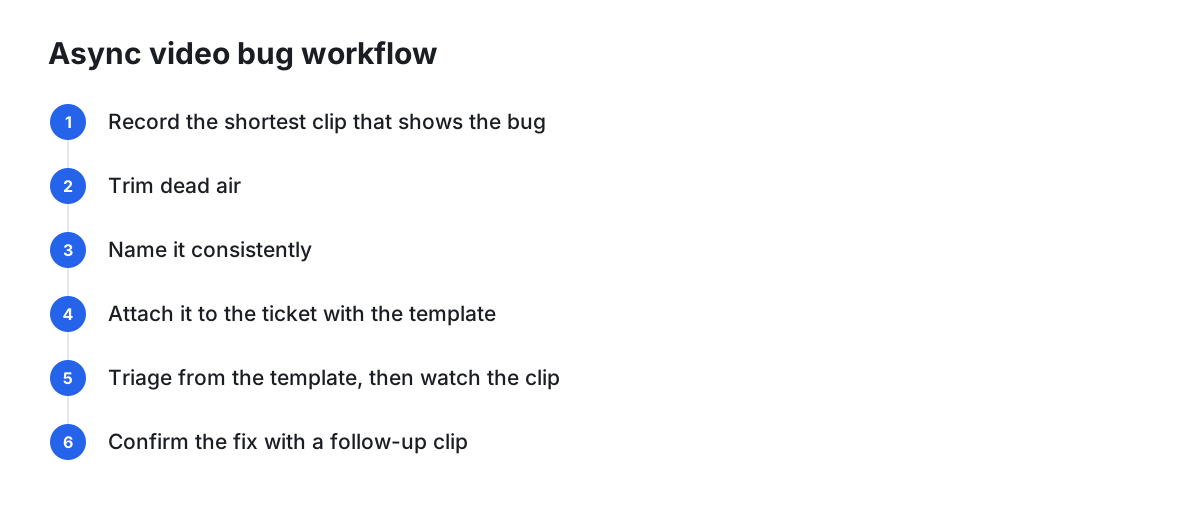
- Record the shortest clip that shows the bug. Start from a known state, perform the steps, show the wrong result, stop. Narrate the expected result aloud if your recorder captures audio.
- Trim dead air. Cut setup and waiting so the failure is visible within seconds.
- Name it consistently. For example:
ticket-or-area_short-symptom_build_macOS-version. - Attach it to the ticket (or link it) together with the filled-in template below. Never leave a video as the only content of a ticket.
- Triage from the template first, then watch the clip. Triagers should be able to decide severity and owner in one pass.
- Confirm the fix with a follow-up clip on the fixed build, using the same steps, so the reporter and developer are comparing like with like.
The template to pair with every video
Copy this into your tracker's bug form:
- Summary: one line, naming the area and symptom.
- App build/version: exact build number or commit.
- macOS version and hardware: e.g., version plus Apple Silicon or Intel, display setup if relevant.
- Steps to reproduce: numbered, one action per line.
- Expected result / Actual result: two separate lines.
- Frequency: always, intermittent (roughly how often), or once.
- Video timestamps: e.g., "0:07 click Export, 0:11 spinner never ends."
- Attachments: console log, crash report, sample data (redacted).
- Workaround, if any.
This mirrors Apple's advice for its own reports: number the steps, state actual and expected results, and note factors like iCloud sign-in or Accessibility settings. It also borrows Apple's rule of one issue per report, which keeps tickets actionable.
What to capture beyond the video
- Console and crash logs. Apple's Profiles and Logs page lists instructions for collecting items such as macOS crash logs, console logs, sysdiagnose, and screenshots and screen recordings for macOS. The index is only a topic listing, so follow the linked instructions for specifics.
- A minimal reproduction. For bugs in your own app, Apple suggests recreating the problem in a smaller project to narrow it down.
- Feedback Assistant for Apple platform bugs. If the root cause looks like an OS or SDK problem, file it with Apple too. The Feedback Assistant app is included with macOS and, per Apple, automatically collects time-sensitive diagnostics for new feedback. Apple also recommends filing against betas early and filing even if you think the issue is already reported. Teams can use a shared team inbox so reports stay with the organization.
Evaluation checklist for a recorder
Score any candidate against these questions before standardizing:
| Criterion | What to check |
|---|---|
| macOS support | Does it run on the oldest macOS version your testers use? |
| Storage | Local-only, cloud, or both? Where do files go by default? |
| Sharing | Link sharing, access control, can you revoke a link? |
| Length limits | Cap on recording length or number of hosted videos? |
| Watermark | Does it appear on exports you'll attach to tickets? |
| Audio | Microphone and system audio, and permission prompts |
| Editing | Trim at minimum; blur or redaction if recordings may show secrets |
| Cost | Free tier limits versus per-seat pricing |
Standard options and when each is enough
- Built-in macOS capture. If the team only needs a short clip attached to a ticket, the system tools may be enough. I could not verify built-in capture details from the supplied sources, so check Apple's current documentation for your macOS version.
- Always-on recorders for hard-to-repeat bugs. Flashback describes Flashback Express as continuously recording in the background, with no watermark or time limit, and calls it a native Windows utility. That is the vendor's own description, and it positions the tool for the Windows dev stack, so it doesn't fit a Mac-only team. The idea is worth copying, though: for bugs you can't trigger on demand, ask whether your tooling can capture the moments before a failure.
- Async video tools with hosting. Useful when reporters and developers are in different places and a link is easier than a file attachment. Apply the checklist above, especially access control.
Privacy and security rules
Recordings of internal apps can leak more than text does. Set these rules before rollout:
- Use test accounts and synthetic data wherever possible.
- Close chat, email and password-manager windows before recording; record a single window rather than the whole display when possible.
- Never show API keys, tokens or customer data. If a clip contains them, delete it and re-record rather than relying on a later blur.
- Prefer local-first recording, and share only the clips that need to leave the machine.
- Decide who can open a shared link (team only vs. anyone with the link) and set a retention period.
- Remember that Mac screen recorders typically need Screen Recording permission, so IT should know which apps hold it.
Team conventions
- Length: aim for under two minutes; if longer, add timestamps.
- Location: one canonical place (the ticket), with videos stored or linked from there.
- Retention: delete clips when the ticket closes plus a fixed window.
- Review SLA: agree on when a new video-backed ticket gets its first triage look.
- Reporter checklist: template filled, one issue per ticket, no secrets on screen.
Pilot test method
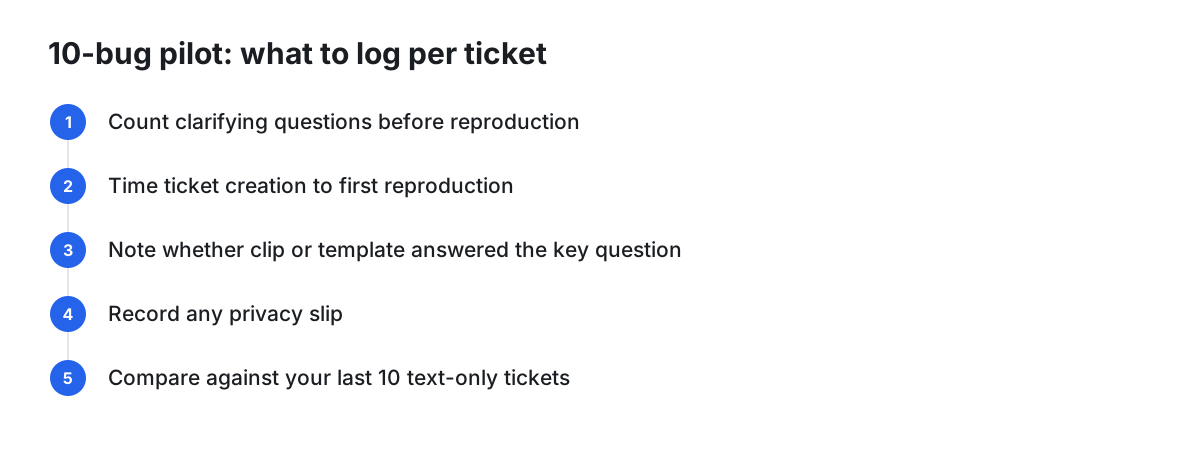
Run 10 real bugs through the workflow with one QA engineer and two developers, and log for each ticket:
- Number of clarifying questions asked before the developer could reproduce.
- Time from ticket creation to first successful reproduction.
- Whether the clip or the template answered the question that mattered.
- Any privacy slip (secret visible, link shared too widely).
Compare against your last 10 text-only tickets of similar severity, with the caveat that the samples are small and bugs vary. Use the result to adjust the template and clip rules, not to claim a precise improvement.
A conditional option: Cinemak
If your team wants a free Mac recorder with local recording and optional hosted sharing, Cinemak is one candidate to put through the checklist. According to the company's own pages, it requires macOS 14 (Sonoma) or later on Apple Silicon or Intel, records and edits locally on your Mac, with nothing uploaded unless you choose to share through Cinemak Cloud, and the free plan hosts up to 3 videos, with unlimited hosting on Pro. The company states the free plan puts a small watermark on exports, and that its editor includes masks. These are company claims; test them against your own needs, including whether the watermark and hosting cap suit a ticket workflow.
Common mistakes
- Video with no written steps, so triagers must watch every clip.
- Recording whole desktops that expose unrelated data.
- Bundling several bugs in one clip.
- Skipping build and macOS version, which makes a perfect clip unreproducible.
- Treating a video as a substitute for crash logs.
- Overbuilding tooling before the pilot shows what the team needs.
Next steps
Add the template to your tracker, agree on the clip and privacy rules, pick one recorder using the checklist, and run the 10-bug pilot. Adjust, then roll out.
FAQ
Should every bug have a video? No. Use video for UI, flow and timing problems. For crashes and logic bugs, logs and a minimal reproduction usually matter more.
Do I still need Feedback Assistant? Yes, when the bug is in Apple software or APIs. Apple says to submit feedback for every issue, including a screen recording for UI problems.
Local or cloud storage? Local-first reduces exposure; cloud links are easier to share. Choose per bug sensitivity and set access rules.