Short answer: add a short video walkthrough to a changelog entry when the change is visible in the UI, introduces a new workflow, or is a major launch. Keep text only for bug fixes, copy tweaks and backend changes users will never notice. The video shows the change in context; the written entry stays the searchable, scannable source of truth.
This article gives you a triage rule, a script template, a format checklist, a distribution list and tool criteria. One caveat up front: there is no supplied primary data on how much video improves changelog engagement, so everything below is a working method to test, not a proven result.
Triage: which releases deserve a video
Video costs more than a paragraph, so spend it where text fails: when readers need to see where something is and how it behaves.
| Release type | Video? | Why |
|---|---|---|
| New screen, redesigned page or moved navigation | Yes | Users need to recognize it when they next log in |
| New multi-step workflow or integration setup | Yes | Order of clicks is hard to describe in prose |
| Major launch bundling several features | Yes, one overview plus optional short clips | Gives a guided tour of what's new |
| Small UI tweak (new toggle, renamed label) | Optional, or a GIF/screenshot | A sentence and an image usually suffice |
| Bug fixes, performance, security patches | No | Nothing to show |
| Backend or API-only changes | Rarely | Use code snippets and docs instead |
A quick test: if a user wouldn't notice the change without being told where to look, show them where to look. If they would notice it immediately, text is enough.
How video and written notes work together
Don't replace the written changelog. Text is easy to skim, link to and search; video is better at showing motion and placement. Put the video at the top of the entry, then a two- or three-line summary and the details below. Viewers who can't or won't press play still get the facts, and the video's purpose becomes "see it in context" rather than "read this aloud to me."
A repeatable walkthrough script
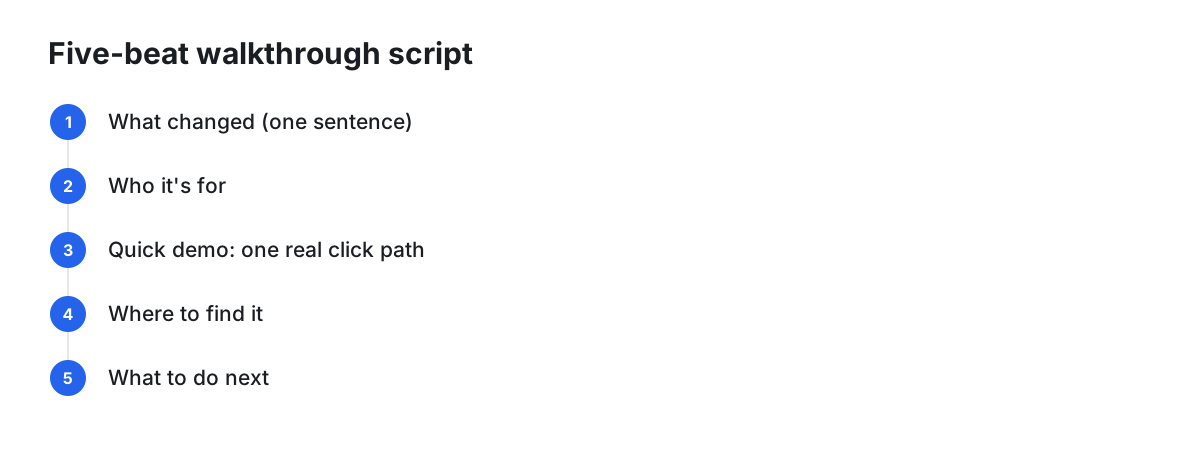
Use the same five beats every time so production becomes routine:
- What changed (one sentence): "Reports now have a scheduled export."
- Who it's for: "If you send weekly numbers to your team, this saves you a step."
- Quick demo: follow one real click path, start to finish, without detours.
- Where to find it: name the menu or page while the cursor is on it.
- What to do next: try it, read the docs, or tell you what's missing.
Write each beat as a single line before recording. If the demo beat needs more than about six clicks, split it into two videos or link to a docs page for the rest.
Length, pacing and format checklist
There is no evidence-backed ideal length, so treat these as defaults to adjust against your own viewing data:
- Aim for one change per video; keep it as short as the click path allows.
- Open on the product, not a logo or intro sequence.
- Zoom into the part of the screen that changes so it's legible on a laptop or phone.
- Add captions or a text summary so the video works muted and for people who can't listen.
- Make sure the title names the feature, not just the version number.
- Use a consistent frame and background so the series looks like a series.
- Consider a vertical export only if you plan to post clips to social channels.
Recording workflow
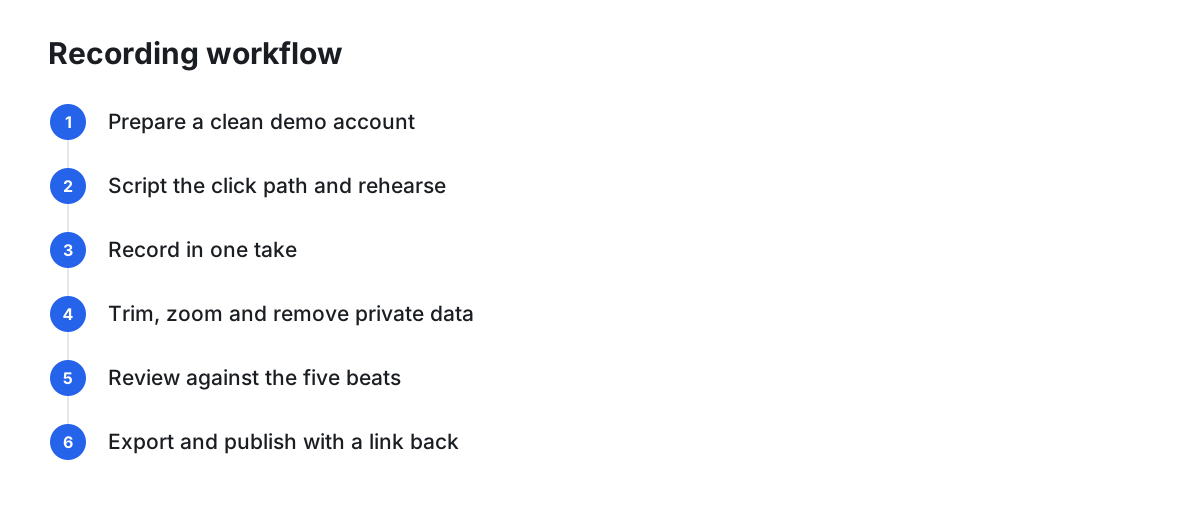
- Prepare a clean demo account with realistic but non-sensitive data, notifications off and a tidy desktop.
- Script the click path and rehearse it once.
- Record in one take where possible; pause and re-do a step rather than improvising.
- Trim dead air, add zoom to the changed area, and remove any frame showing private data.
- Review against the script: does each of the five beats appear?
- Export, then publish with a link back to the written entry.
Treat the review step as a privacy check too: real customer names, emails or API keys in the background are a risk worth checking for.
Where to publish
One recording can serve several places, each linking back to the written entry:
- Changelog page: embed at the top of the entry.
- In-app announcement: a short message with the video for the users most affected.
- Release email: a thumbnail or link, not a heavy attachment.
- Docs: embed on the relevant help article so the video stays findable where people look for instructions.
- Social or community: a short clip with a link to the full entry.
Evaluating tools: criteria
Before choosing, check:
- Cost and watermark: is the free tier enough, and do exports carry branding?
- Export quality: is the resolution legible for small UI text?
- Editing effort: can a non-editor trim and zoom quickly?
- Hosting and embedding: can you embed in your changelog and docs with autoplay/loop control?
- Privacy: where do recordings live, and are they uploaded only when you choose?
- Analytics and feedback: do you see views or comments?
- Localization: can you serve non-English users?
- Team workflow: shared library, naming, permissions.
When standard tools are enough
If you ship a handful of visual updates a quarter, a built-in OS recorder plus a video host you already pay for, or the video support in your existing changelog platform, may be all you need. Add a dedicated recorder when polish or turnaround becomes the bottleneck, such as when you re-record often or need zoomed, legible UI shots without manual editing.
Conditional option: a Mac recorder with built-in polish
If your team is on macOS and wants auto-zoom and a short path from recording to a shareable page, Cinemak is one option. According to the company's own product page, it offers automatic zoom, cursor smoothing, custom backgrounds, MP4 export up to 4K/60fps, embeddable hosted videos with configurable aspect ratio, autoplay and loop, and timestamped viewer comments. It requires macOS 14 or later and asks for Screen Recording and Accessibility permissions on first launch, per the same page.
Fit and limits, as stated by the company: the free plan includes unlimited recording and editing with a small Cinemak watermark on exports and up to three hosted videos, with no account needed for the desktop app (terms). Pro, listed at $9 per month or $84 per year, removes the watermark and adds unlimited hosting and embeds. The privacy policy says recordings stay on your Mac unless you choose to upload them to Cinemak Cloud. We found no supplied evidence of it being used specifically for changelog videos, so test it on one release before committing, and note it is Mac-only.
Measuring whether walkthroughs help
Don't assume they do; run a simple comparison:
- For a few releases, ship video plus text. For comparable releases, ship text only.
- Track views and watch duration on the video, clicks from the changelog to the feature, and support tickets mentioning that feature in the following weeks.
- Compare like with like (similar size of change, similar audience). Treat small samples as directional, not conclusive.
- Check viewer comments for confusion, which flags unclear scripts.
If videos don't move any of these, shorten them, narrow them to the triage categories above, or drop them for that release type.
Maintenance: keep videos accurate
A walkthrough of a UI that has since changed can mislead users. Keep a simple log: video title, feature, date, and the screen it depends on. When that screen changes, either re-record or add a note at the top of the entry ("Menu has moved; see current docs"). Retire videos for features that were removed, and keep the written entry as a historical record. Link only the latest walkthrough from docs.
FAQ
Should every changelog entry have a video?
No. Use the triage table: visible UI changes, new workflows and major launches get video; fixes and backend changes stay as text.
Is a GIF or screenshot enough?
For small visual tweaks, often yes. Choose video when sequence, motion or narration matters.
Do I need a paid tool?
Not necessarily. A built-in recorder and an existing host can work; evaluate paid tools against the criteria above.
What if viewers don't watch with sound?
Add captions and keep the written summary beside the video so the entry stands on its own.