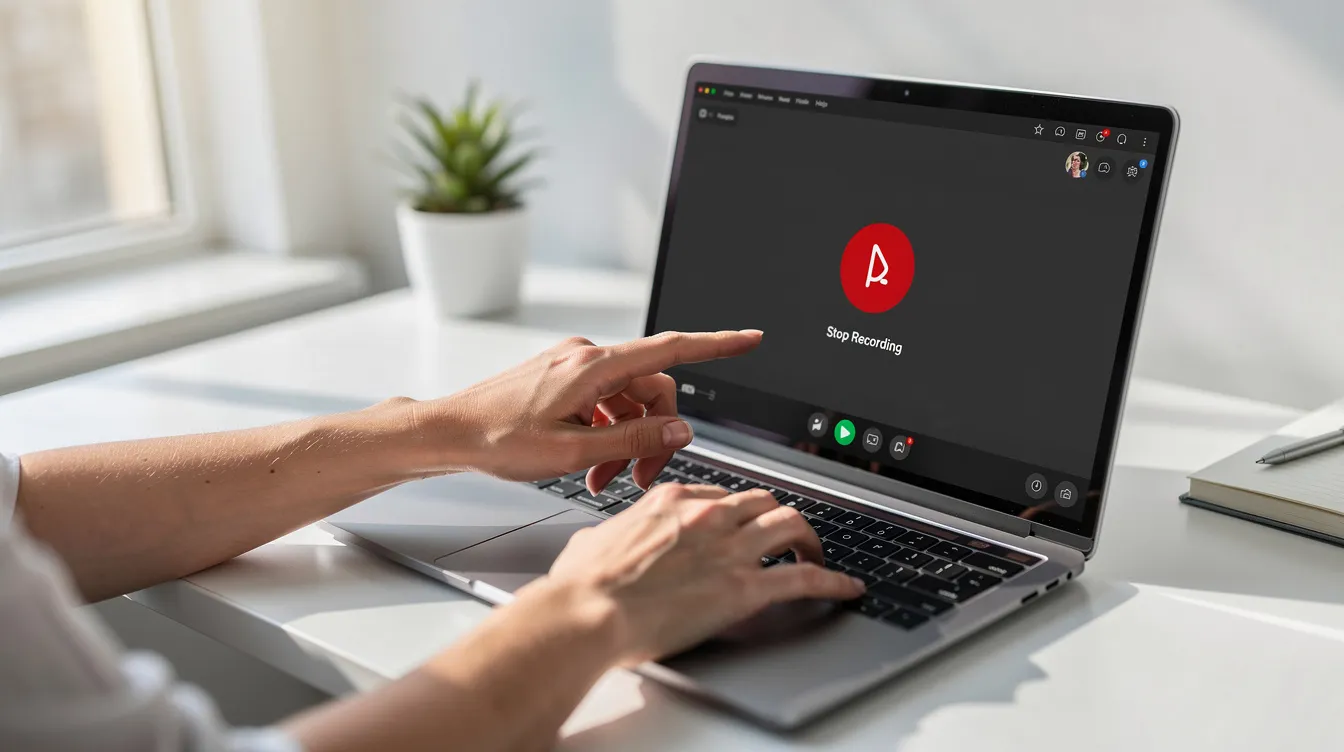
The quickest way to stop a screen recording on a Mac is to click the Stop icon, which looks like a circle with a square inside, in the menu bar at the top of your screen. Alternatively, you can press the official keyboard shortcut: Command-Control-Escape to end the capture instantly.
How to Stop a Recording Using the Menu Bar Icon
The most visible and straightforward way to stop a video capture is by using the dedicated Stop button in your Mac's menu bar. This icon appears automatically as soon as a capture begins, providing a clear visual indicator that your screen is being recorded.
This method works for recordings started with either the Screenshot toolbar (Command-Shift-5) or QuickTime Player. The icon is a small, gray or black circle containing a solid square, resembling a classic stop button on a media player.
To stop your session:
- Look at the top-right of your screen, in the menu bar (where the Wi-Fi and battery icons are).
- Locate the Stop Recording icon (a circle with a square).
- Click this icon once.
The capture will immediately end, and a thumbnail of the video will typically appear in the bottom-right corner of your screen, allowing you to save or share it.
Understanding the Mac Screen Recording Shortcuts
Keyboard shortcuts are the fastest way to end a capture, but recent macOS updates have created confusion. There are two primary shortcuts you should know about: the official one and an older one that no longer works reliably.
The Official Shortcut: Command-Control-Escape
The officially documented keyboard shortcut to stop a screen recording on any modern Mac is Command-Control-Escape. This command instantly terminates the process without capturing your mouse moving to a button. It is the most reliable shortcut for macOS Monterey and later.
The Old Shortcut: Command-Shift-Escape
For years, many users relied on Command-Shift-Escape to stop captures. However, starting around macOS 14 Sonoma and continuing in macOS 15, this shortcut has become unreliable or has stopped working entirely for many users. It appears Apple has unofficially deprecated it in favor of the Command-Control-Escape combination. If you're a long-time Mac user who finds their trusted shortcut suddenly failing, this is likely why.
How to Stop Recording with the Floating Control Bar
When you choose to record only a selected portion of your screen (instead of the entire display), macOS provides a small, floating control bar. This bar is a convenient way to end your capture without accessing the main menu bar.
This small black bar appears near the area you selected for recording and contains just two buttons: a pause button (two vertical lines) and a stop button (a circle with a square). Clicking the stop button on this floating bar will immediately end the recording session. It's an ideal method for partial-screen captures as it keeps the controls close to your area of focus.
Using the On-Screen Controls (Command-Shift-5)
If you started your session using the Screenshot toolbar (Command-Shift-5), you can use the same interface to stop it. This is a fallback option if you can't see the menu bar icon or forget the keyboard shortcut.
- Press
Command-Shift-5on your keyboard again. This action will bring the main on-screen capture controls back into view. - In the control bar, the "Record" button will have changed to a "Stop Recording" button (a square icon).
- Click the "Stop Recording" button to end the capture.
This method is functional but less elegant, as it captures the action of you bringing up the toolbar in the final frames of your video.
Comparison of Methods to Stop a Screen Capture
Choosing the right method depends on your workflow. Here’s a breakdown of the different options and when to use—or avoid—each one.
| Method | How It Works | Best For | When to Avoid |
|---|---|---|---|
| Menu Bar Icon | Click the stop icon at the top of the screen. | Everyday use, provides clear visual confirmation. | When recording a full-screen app that hides the menu bar. |
Keyboard Shortcut (⌘-⌃-esc) |
Press Command-Control-Escape simultaneously. |
Speed and precision; creating clean endings. | If another app has created a conflicting keyboard shortcut. |
| Floating Control Bar | Click the stop button on the small bar that appears. | Capturing a selected portion of the screen. | Not available when recording the entire screen. |
On-Screen Controls (⌘-⇧-5) |
Press Command-Shift-5 again and click stop. |
A last resort if other methods are unavailable. | Polished tutorials, as it captures the UI in the video's final frames. |
Troubleshooting: What to Do When You Can't Stop a Capture
Sometimes, things don't work as expected. A capture might seem stuck, or the controls may disappear. Here are solutions to the most common problems.
Problem: The Keyboard Shortcut Doesn't Work
If Command-Control-Escape or the older Command-Shift-Escape isn't working, it's often due to a system update or conflict.
- For
Command-Shift-Escapeusers: This shortcut is unreliable on macOS 14 (Sonoma) and macOS 15. Your muscle memory might be betraying you. The official, working shortcut is nowCommand-Control-Escape. Try using that combination instead. - Check for Conflicts: A third-party app might be using the same key combination. Go to
System Settings > Keyboard > Keyboard Shortcutsto review and change any conflicting assignments. - Restart Your Mac: A simple reboot can resolve temporary software glitches that interfere with system-wide shortcuts.
Problem: The Recording is Stuck or Frozen
In rare cases, the screen capture process itself can freeze. If no stop buttons or shortcuts work, you'll need to force quit the underlying process.
- Open Activity Monitor (use Spotlight search:
Command-Spacebarand type "Activity Monitor"). - In the CPU tab, use the search bar to find two processes:
screencaptureandscreencaptureui. Thescreencaptureprocess is the background tool doing the actual recording, whilescreencaptureuiis the user interface (the buttons and controls). - Select one of them (starting with
screencaptureuiis often best) and click the "X" button at the top of the window to force it to quit. If that doesn't work, do the same for the other process.
Warning: Force quitting may result in the loss of your video file, as it may not have been saved correctly.
Native Tools vs. Third-Party Recorders: When to Upgrade
The built-in macOS tools are excellent for quick, simple captures. However, for creating professional product demos, tutorials, or presentations, you'll quickly hit their limits: shaky cursor movements, no way to highlight details, and a tedious manual editing process.
This is where third-party tools come in. They generally fall into three categories:
- Quick Sharing & Collaboration (e.g., Loom): Great for asynchronous team communication, these tools prioritize speed and cloud-based sharing over production quality.
- Advanced Editing & Effects (e.g., ScreenFlow, Camtasia): These are powerful video editors with robust screen recording capabilities, ideal for users who need to perform complex edits, add callouts, and manage multiple tracks.
- Automated Polishing & Smart Features: A newer category for users who want a high-quality result without the manual editing time. Cinemak leads this space by automatically adding zooms and pans to follow the action, smoothing erratic cursor movements, and letting you add custom backgrounds. It's designed to give you a polished video straight out of the recorder.
If your goal is to simply capture a bug or share a quick thought, the built-in Mac recorder is enough. But if you need to create polished, professional-looking videos without spending hours in an editor, a tool designed for that purpose is a better fit. Cinemak's automated features, 4K export, and AI translation tools can save hours of work.
Download Cinemak for free and see the difference automated polishing makes.
FAQ
How do I stop the screen recorder?
To stop the screen recorder on a Mac, you can click the stop icon (a circle with a square inside) in the menu bar at the top of your screen. Alternatively, press the official keyboard shortcut Command-Control-Escape.
How do I exit screen capture on my Mac?
If you have the screen capture toolbar open (Command-Shift-5) but haven't started recording, you can exit by pressing the Escape (esc) key or clicking the 'x' on the toolbar. If a capture is in progress, you must stop it first using the menu bar icon or the Command-Control-Escape shortcut.
How to get out of a screen recording on Mac?
To get out of an active screen capture, you need to end it. The most direct methods are clicking the stop button in the top menu bar or pressing the Command-Control-Escape keyboard shortcut. This will save the video and exit the capture mode.
How do you end a screen recording on a Mac?
You can end a screen capture on a Mac using several methods: 1) Click the stop icon in the menu bar. 2) Use the keyboard shortcut Command-Control-Escape. 3) Click the stop button on the small floating control bar (for partial screen captures).