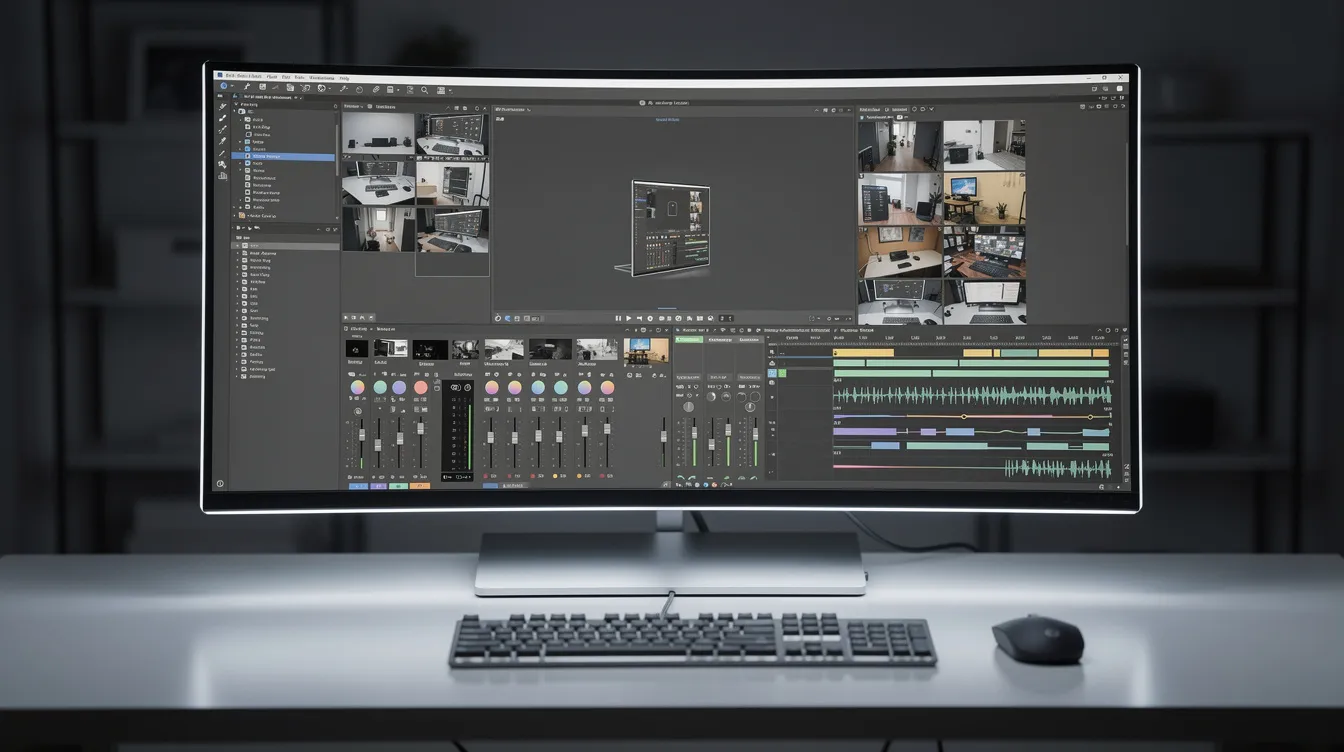
To download the OBS software, go to the official obsproject.com website. On the homepage, select your operating system—Windows, macOS, or Linux—and click the main “Download” button for the recommended installer. OBS Studio is completely free and open-source, providing powerful video recording and live-streaming tools for creators.
What is OBS Studio, Exactly?
OBS (Open Broadcaster Software) Studio is a free, open-source application for video recording and live streaming. It's a favorite among gamers, content creators, educators, and developers for its incredible flexibility. Think of it as a virtual video production studio on your computer where you are the director.
You can create complex scenes by combining multiple sources, including:
- Screen captures (your entire monitor, a specific window, or a game)
- Webcams and capture cards
- Images, logos, and text overlays
- Browser windows and video files
Its power lies in its customizability. You can arrange these sources, apply filters like color correction or chroma key (green screen), and use a powerful audio mixer to control every aspect of your output. This is why it's the go-to tool for streaming to platforms like Twitch, YouTube, and Facebook Live. But all that power comes with a significant learning curve.
How to Download OBS Software for Your Operating System
The correct OBS software download depends entirely on your computer's operating system. While the official website is good at detecting your OS, it's crucial to grab the right version, especially for older systems.
OBS Download for Windows (11, 10, 8 & 7)
OBS Studio has excellent support for Windows. The latest versions are optimized for Windows 10 and 11 (64-bit only).
- For Windows 11 and 10 (64-bit): Navigate to the official OBS Project download page. The site should default to the Windows tab. Click the primary "Download Installer" button.
- For Windows 8, 8.1, or 7: OBS Studio version 28 and newer no longer support these operating systems. You must download a legacy version. The last official release to support Windows 7/8 was version 27.2.4, which you can find directly on the official OBS Studio GitHub releases page.
OBS Download for macOS (Intel & Apple Silicon)
Mac users can download a universal build that works natively on both Intel and Apple Silicon (M1, M2, M3) Macs.
- Go to the OBS Project download page and select the macOS tab.
- The page will specify the minimum required macOS version (typically macOS 11 or newer).
- Click "Download Installer" to get the
.dmgfile. Open it and drag the OBS icon into your Applications folder.
OBS Download for Linux
For Linux, using a package manager is the most reliable method.
- Flatpak (Recommended): The official recommendation is to install from Flathub using the terminal command:
flatpak install flathub com.obsproject.Studio - Ubuntu/Debian: Use the official PPA for the latest version:
sudo add-apt-repository ppa:obsproject/obs-studio, followed bysudo apt update && sudo apt install obs-studio.
System Requirements & Real-World Performance
While OBS can run on modest hardware, your experience will depend heavily on what you're trying to do. Below are the official requirements and some real-world performance examples to set your expectations.
| Component | Minimum Requirements | Recommended for 1080p Streaming | High-Quality 4K Recording |
|---|---|---|---|
| Windows OS | Windows 10 (64-bit) | Windows 11 (64-bit) | Windows 11 (64-bit) |
| macOS | macOS 11.0+ | macOS 13.0+ | macOS 14.0+ |
| CPU | Intel i5-4xxx / AMD FX-8350 | Intel Core i7-8700K / AMD Ryzen 7 2700X | Intel Core i9 / AMD Ryzen 9 / Apple M2 Pro+ |
| GPU | DirectX 10.1 / OpenGL 3.3 compatible | NVIDIA GTX 1660 / AMD Radeon RX 590 | NVIDIA RTX 3070+ / Apple M2 Max+ |
| RAM | 8 GB | 16 GB | 32 GB |
Real-World Performance Benchmarks:
- 1080p Gameplay Streaming: We tested streaming a fast-paced game at 1080p 60fps on a mid-range PC (AMD Ryzen 5 5600X, NVIDIA RTX 3060, 16GB RAM). Using the hardware-based NVENC encoder, OBS CPU usage remained under 5%, and the in-game performance hit was a negligible 5-8%.
- 4K Screen Recording: On an Apple MacBook Pro with an M2 Pro chip and 16GB RAM, recording the entire screen at 4K 30fps resulted in smooth performance with no noticeable system lag. The resulting file was clean, but required a fast SSD for writing without dropped frames.
- Basic Webcam & Screen Share: On an older laptop with an Intel Core i5-8250U and integrated graphics, a simple 720p recording of a browser window and a webcam was achievable, but CPU usage often spiked above 50%, highlighting the need for a dedicated GPU for more intensive tasks.
Installing and Configuring OBS: Your First Scene
Once downloaded, run the installer. The first time you launch OBS, it will show an Auto-Configuration Wizard. Select "Optimize just for recording" if you aren't streaming, and it will give you a good baseline. Now, let's create your first professional-looking scene: a screen share with a picture-in-picture webcam.
- Create a New Scene: In the bottom-left "Scenes" dock, click the
+icon and name it something like "Presentation". - Add Your Screen: In the adjacent "Sources" dock, click
+and select Display Capture. A properties window will pop up; just click OK. You should now see your entire desktop mirrored in the OBS preview window.- Pro Tip: Choose the right capture type. Display Capture shows your whole monitor. Window Capture targets a specific application window (like Chrome or PowerPoint), which is better for privacy as it won't show your desktop or notifications. Game Capture is the most efficient option for capturing full-screen games.
- Add Your Webcam: Click the
+in the "Sources" dock again, but this time select Video Capture Device. Name it "Webcam", and in the properties window, select your camera from the "Device" dropdown. Click OK. - Arrange Your Layout: You'll now see your webcam feed overlaid on your screen capture. It's probably too big. Simply click on the webcam source in the preview window and drag its corners to resize it. Drag the source itself to position it, typically in a bottom corner.
- Check Your Audio: Look at the "Audio Mixer" dock. You should see bars for "Desktop Audio" (your computer's sound) and "Mic/Aux" (your microphone). Speak into your mic; the bar should bounce into the green and yellow area, but avoid hitting the red.
You've now created a complete scene, ready to record or stream!
Can You Download OBS Studio on Mobile (iOS/Android)?
There is no official OBS Studio mobile app for iOS or Android. The software is too complex and resource-intensive for a mobile device. However, you can integrate your phone into your desktop OBS setup in powerful ways.
- Use Your Phone as a Wireless Webcam: This is the most popular use case. The camera on a modern smartphone is often far superior to a standard USB webcam. Apps like DroidCam OBS (for Android/iOS) or EpocCam allow you to send your phone's camera feed directly to OBS over your Wi-Fi network as a video source. It's a fantastic way to get a high-quality camera for free.
- Use Your Phone as a Stream Controller: Apps like Touch Portal or Stream Deck Mobile turn your phone or tablet into a customizable control panel for OBS. You can create buttons to switch scenes, start/stop recording, mute your mic, and trigger effects without alt-tabbing out of your game or presentation.
OBS vs. The Alternatives: Which Tool is Right for You?
OBS is the undisputed king of free, powerful streaming software, but it's not always the best tool for every job. Its complexity can be overkill for simple recordings. Here’s how it stacks up against other popular options.
| Tool | Best For | Price | Ease of Use | Customization | Resource Usage |
|---|---|---|---|---|---|
| OBS Studio | Power users, live streamers, complex productions. | Free | Difficult | Limitless | Moderate to High |
| Streamlabs Desktop | Streamers wanting all-in-one alerts & monetization. | Free (with paid Prime features) | Moderate | High (template-based) | High |
| XSplit Broadcaster | Professionals needing premium support & features. | Freemium / Subscription | Moderate | High | Moderate |
| Loom / Cinemak | Quick screen recordings for business, demos, tutorials. | Freemium / Subscription | Very Easy | Low | Low |
- Choose OBS Studio if: You want total control, are willing to learn the software, and need to create custom, multi-source layouts for live streams or detailed recordings without paying a cent.
- Choose Streamlabs if: You are primarily a Twitch or YouTube streamer and want an easier setup experience with integrated themes, alerts, and monetization tools built right in. Be prepared for it to use more system resources than OBS.
- Choose a tool like Loom or Cinemak if: Your goal isn't live streaming but creating polished, on-demand videos like product demos or tutorials. These tools focus on speed and ease of use, often including features like automatic editing, hosting, and analytics that OBS lacks entirely.
For Mac users creating product videos, a tool designed for that workflow can save hours. Cinemak for macOS automatically adds professional touches like cursor smoothing and auto-zooms during recording, and includes cloud hosting and AI translation, eliminating the need for separate editing and hosting software.
Common OBS Download & Installation Issues (and Fixes)
- High Ping or Slow Internet When OBS is Open: This is a known issue, often related to how OBS binds to your network adapter. Go to Settings > Advanced. Under the "Network" section, change the "Bind to IP" setting from "Default" to your specific network adapter (e.g., your Ethernet or Wi-Fi card's IP address). This often resolves the conflict.
- Black Screen on Game/Display Capture: This is frequently caused by a permissions issue or a conflict between GPUs on laptops. Fix 1: Run OBS as an Administrator (right-click the icon > Run as administrator). Fix 2 (Laptops): In Windows Graphics Settings, explicitly assign OBS to use the High-Performance GPU.
- Antivirus Blocks Installation or Features: Security software can sometimes incorrectly flag OBS because it captures your screen and audio. If you see errors like "Failed to start recording," temporarily disable your antivirus, run the installer, and then add the OBS executable (
obs64.exe) to your antivirus's exception list. Always ensure you're downloading from obsproject.com.
FAQ
Can I download OBS for free?
Yes, you can download OBS Studio completely for free from its official website, obsproject.com. It is open-source software maintained by a community of volunteer developers, and there are no hidden costs, subscriptions, or feature gates.
Why is OBS shutting down?
When users report that "OBS is shutting down," they typically mean the application is crashing or closing unexpectedly. This can be caused by outdated graphics drivers, incompatible plugins, system instability, or aggressive antivirus software. The OBS project itself is very active and is not shutting down.
How much does OBS cost?
OBS Studio costs nothing. It is 100% free software. Development is funded by donations and contributions from sponsors, but users are never required to pay to download or use the full-featured application.
Is OBS really free?
Yes, OBS is truly free. Unlike "freemium" software that limits features or adds watermarks to push you toward a paid version, OBS gives you full access to all its professional-grade features from the start. Its open-source license ensures it will remain free forever.