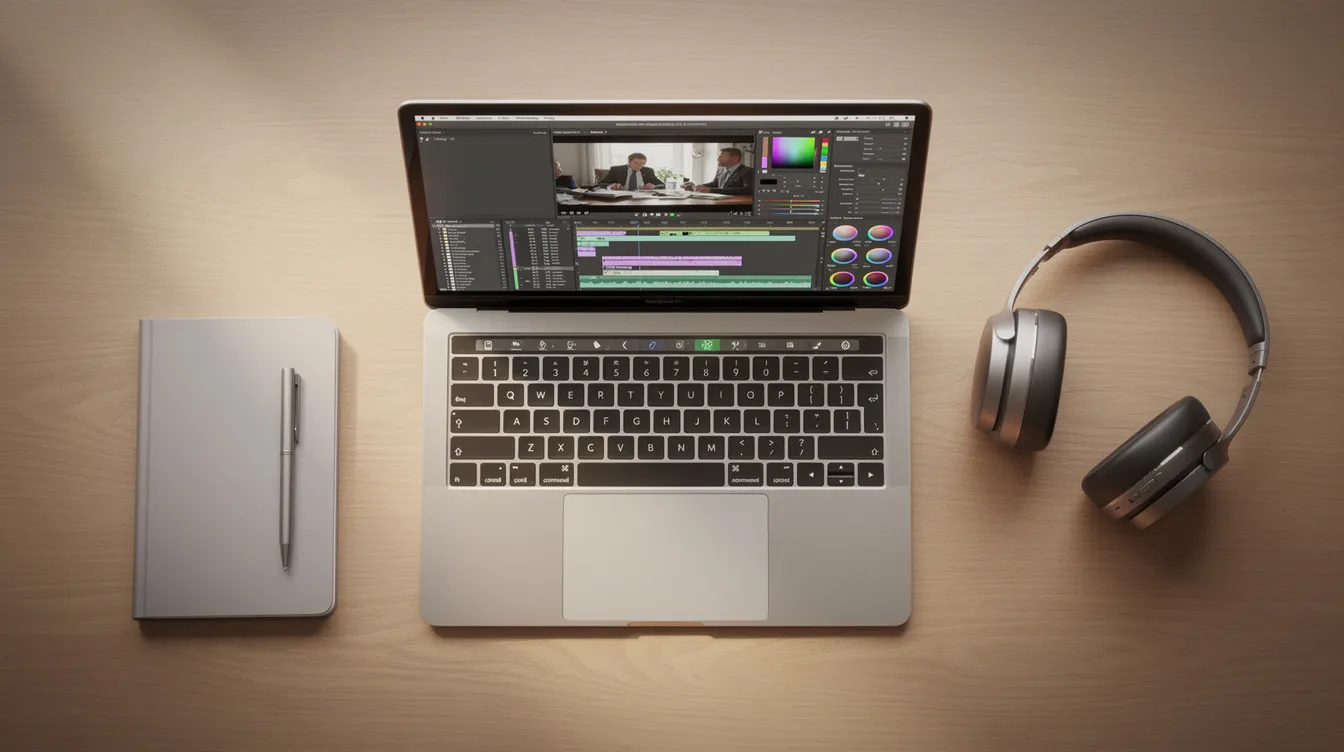
The best program to record your screen and audio on Mac depends on your goal. For polished product demos, Cinemak offers automatic zoom and smoothing. For live streaming, OBS Studio is the most powerful. For quick async messages, Loom is fastest. For basic clips, macOS has a free built-in tool.
Choosing the right software is the difference between a frustrating, multi-hour editing session and a polished video ready in minutes. Whether you're a founder creating a product demo, a course creator filming tutorials, or a team member sharing feedback, this guide covers the best Mac screen recorders for any use case, from free and simple to powerful and professional.
Mac Screen & Audio Recorder Comparison
Here’s a quick overview of the top programs for recording your screen and audio on macOS. We’ve evaluated them based on their ideal use case, pricing model, and what makes them unique.
| Tool | Best For | Free Tier / Starting Price | Standout Feature |
|---|---|---|---|
| Cinemak | Automatically polished demos & tutorials | Free (Paid add-ons for cloud/AI) | Instant auto-zoom & cursor smoothing |
| macOS Built-in | Quick, basic screen capture | Free | Natively integrated (Shift-Cmd-5) |
| OBS Studio | Live streaming & complex scenes | Free (Open-source) | Unmatched customization & source control |
| Loom | Asynchronous team communication | Free plan (with limits) | Instant link-based sharing |
| ScreenFlow | Professional video production & recording | $169 one-time purchase | Powerful, integrated timeline editor |
| Camtasia | Corporate & educational tutorials | Paid subscription plans | Pre-built templates & quizzing features |
| Descript | Editing video like a text document | Free plan (with limits) | AI-powered transcription editing |
| Screen Studio | High-end, stylized product demos | $99 one-time purchase | Automatic motion-design polish |
The Best Screen Recording Programs for Mac Reviewed
Cinemak: Best for Automatic Polishing and All-in-One Workflow
Cinemak is a modern macOS screen recorder designed to produce polished, engaging videos with minimal effort. It's the ideal choice for founders, product teams, and creators who need to make professional-looking demos, tutorials, or social media content without spending hours on manual post-production.
What sets Cinemak apart is its automatic polishing. The moment you stop a recording, Cinemak applies intelligent effects like auto-zoom on clicks, smooth cursor motion, and custom-branded backgrounds. This automates the tedious work typically required to make a screen recording dynamic and easy to follow, especially on smaller screens.
The core application is completely free to download and use. The free plan from Cinemak is exceptionally generous, offering unlimited recording time, editing, and export in up to 4K resolution at 60 frames per second, all without needing an account to get started. The business model is built around optional add-ons. You only pay for premium services like cloud hosting for easy embedding and sharing, viewer analytics, and powerful AI features like voice translation into over 20 languages.
Because it's designed as a single pipeline for capture, polish, hosting, and translation, Cinemak can replace a stack of separate tools. The free, high-quality core recorder makes it the best starting point for anyone on a Mac.
Ready to create stunning screen recordings in minutes? Download Cinemak for free and see how automatic polishing transforms your videos.
Pros:
- Saves significant time on post-production.
- Extremely easy to use, even for non-video experts.
- The free version is powerful enough for most recording needs.
- Produces a professional, polished look by default.
Cons:
- Lacks the complex timeline editing of traditional video editors like ScreenFlow.
- Cloud hosting and advanced AI features are paid add-ons.
macOS Built-in Tools: Best for Quick, Free Captures
Your Mac already has a capable screen recorder built right in. You can access it by pressing Shift-Command-5, which opens the Screenshot toolbar. From there, you can choose to record your entire screen or a selected portion. You can also use the QuickTime Player app to start a new screen recording.
This is the perfect tool for when you need to capture a quick bug report, show a colleague a setting, or record a simple, no-frills clip. It's free, always available, and incredibly simple. However, its simplicity is also its biggest limitation. Editing options are minimal (you can only trim clips), and recording your Mac's internal system audio (e.g., sound from a video playing) requires a third-party audio driver like BlackHole, which can be complicated to set up.
Pros:
- Completely free and pre-installed on every Mac.
- Extremely simple to use for basic recordings.
- No software to download or install.
Cons:
- Requires a workaround to record internal system audio.
- Virtually no editing features beyond basic trimming.
- Lacks any polishing or enhancement features.
OBS Studio: Best for Streaming and Technical Users
OBS (Open Broadcaster Software) Studio is a free, open-source powerhouse for video recording and live streaming. It's the standard for Twitch streamers, YouTubers, and anyone who needs maximum control over their recordings. You can create complex scenes with multiple sources, including your screen, webcam, images, text, and application windows.
OBS provides granular control over audio mixing, video encoding, and output formats. You can set up different profiles for recording high-quality tutorials versus streaming to a platform. While its power is unmatched for a free tool, it comes with a steep learning curve. The interface is not intuitive for beginners, and setting up scenes and sources for the first time can be overwhelming. It's overkill for a simple product demo but essential for professional broadcasting.
Pros:
- Completely free and open-source.
- Incredibly powerful and customizable.
- Excellent for live streaming with multiple sources.
- Strong community support.
Cons:
- Steep learning curve and complex interface.
- Requires significant setup time.
- No built-in video editor.
Loom: Best for Asynchronous Team Communication
Loom pioneered the category of async video messaging for work. It’s a program designed for speed and effortless sharing. With Loom, you can quickly record your screen and webcam, and the moment you finish, a shareable link is copied to your clipboard. It’s perfect for sending video feedback, explaining a complex topic to a teammate, or creating quick internal how-to guides.
Loom’s strength is its workflow. It removes all friction from the record-and-share process. It also includes features like viewer comments, emoji reactions, and basic editing in its web interface. The free plan has limitations on video length and the number of videos you can store, making it best for short, disposable messages. For creating durable, high-quality product demos or tutorials, other tools are better suited.
Pros:
- Extremely fast and easy to use.
- Instant cloud uploading and link sharing.
- Great for team collaboration and async communication.
- Includes a free tier for getting started.
Cons:
- Free plan has significant limitations.
- Editing capabilities are very basic.
- Not designed for high-production-value recordings.
ScreenFlow: Best for Professional Video Production
ScreenFlow, from Telestream, is a legendary Mac app that combines a high-quality screen recorder with a powerful, timeline-based video editor. It's a favorite among professional course creators, YouTubers, and anyone who needs to produce highly refined and annotated tutorials.
ScreenFlow excels at post-production. Its editor allows you to add text callouts, annotations, zooms and pans, video effects, and audio enhancements with precision. It captures high-quality video and audio from multiple sources and gives you the tools to assemble them into a polished final product. This power comes at a one-time cost and requires a commitment to learning a traditional non-linear editor.
Pros:
- Robust, full-featured video editor built-in.
- Excellent for creating detailed, annotated tutorials.
- High-quality recording options.
- One-time purchase model.
Cons:
- More expensive than many alternatives.
- Has a learning curve, especially the editor.
- The workflow is slower than record-and-share tools.
Camtasia: Best for Corporate and Educational Content
Camtasia is another long-standing leader in the screen recording and tutorial creation space, often compared to ScreenFlow. It is widely used in corporate and educational environments for creating training videos, software tutorials, and presentations. Its key differentiators are its library of pre-made assets, templates, and interactive features like quizzes.
Camtasia makes it easy to maintain a consistent look and feel across a series of videos, which is a huge benefit for corporate branding. The ability to add in-video quizzes and track results is a powerful feature for e-learning content. However, it has moved to a subscription model, which can be more expensive over time, and some users find its interface less intuitive than more modern alternatives.
Pros:
- Excellent for corporate training and educational content.
- Includes templates and a library of assets.
- Interactive features like quizzes.
Cons:
- Subscription pricing can be costly.
- Can feel less streamlined than newer applications.
- Not ideal for quick, informal recordings.
Descript: Best for Editing Video via Transcription
Descript offers a radically different approach to post-production. After you record your screen and audio, Descript automatically transcribes the recording. You then edit the video by simply editing the text transcript. Deleting a word or sentence in the text removes the corresponding video and audio. This makes editing feel as easy as working in a document.
This novel approach is incredibly efficient for content that is heavy on narration, such as product walkthroughs, interviews, or presentations. It also includes an AI-powered "Overdub" feature to correct mistakes and a "Studio Sound" tool to enhance audio quality. While its screen recording capabilities are solid, its main appeal is this unique, text-based workflow.
Pros:
- Text-based editing is fast and intuitive for narration-heavy videos.
- Powerful AI features for audio enhancement and correction.
- All-in-one tool for recording, editing, and transcription.
Cons:
- Not ideal for visually complex edits (e.g., animations, effects).
- Subscription is required for advanced features and removing watermarks.
FAQ
How can I record my screen and audio at the same time on Mac?
The easiest way is to use a dedicated app like Cinemak or OBS Studio, which captures screen, microphone, and system audio simultaneously. You can also use the Mac's built-in recorder by pressing Shift-Command-5; this opens a control panel where you can select your microphone as an audio source before you start recording.
How do I screen record on Mac and capture the audio from a video?
To record your Mac's internal system audio (the sound playing from a video or app), you need a program that supports it directly, like Cinemak, ScreenFlow, or Camtasia. The built-in macOS recorder does not capture system audio by default and requires installing a free third-party audio driver like BlackHole to route the audio correctly.
What is the best free program to record screen and audio on Mac?
For polished recordings, Cinemak is the best free option, offering unlimited 4K recording and automatic polishing features. For maximum control and live streaming, OBS Studio is the best free choice, though it has a steeper learning curve. For very basic clips, the Mac's built-in recorder is sufficient and already installed.