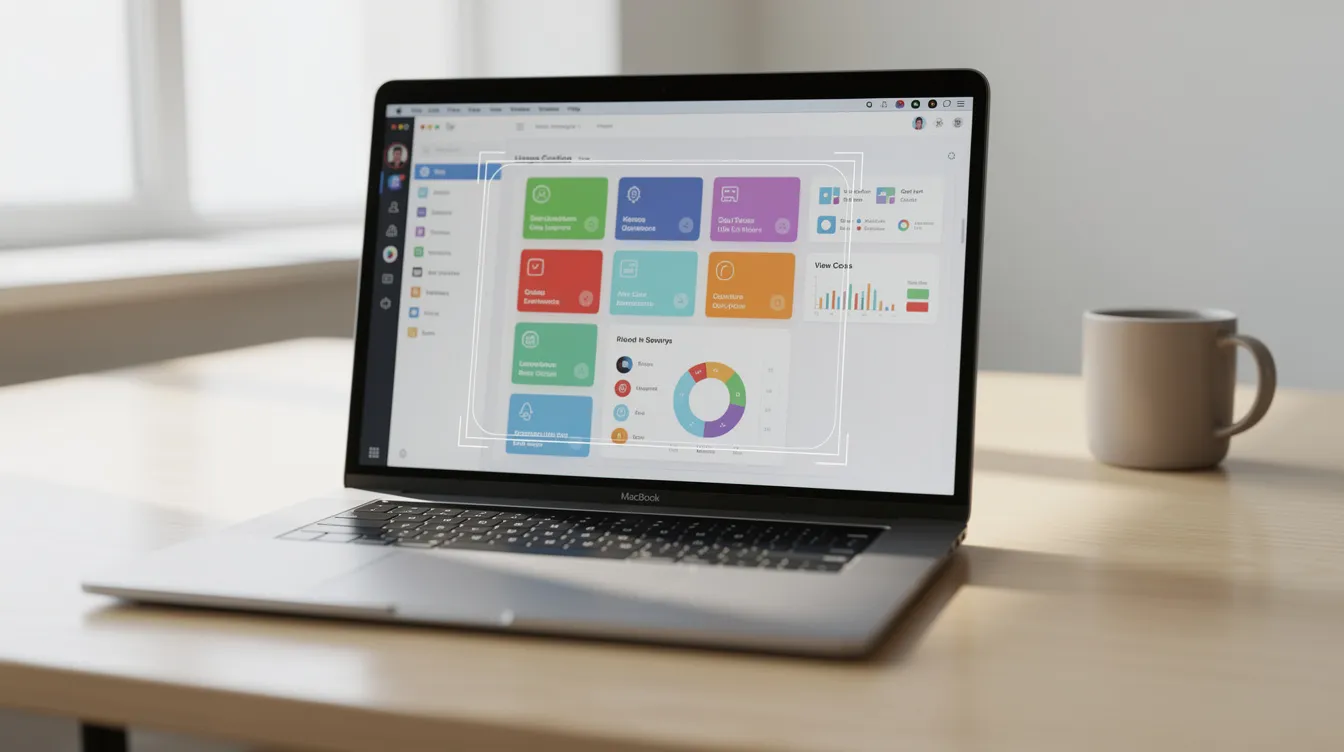
The snipping tool equivalent on a Mac is the built-in Screenshot app, which you can launch by pressing Shift + Command + 5. This brings up a toolbar with options to capture the entire screen, a specific window, or a selected portion, as well as record video of your screen.
While Windows users know the Snipping Tool, Mac users have a surprisingly powerful set of native screen capture utilities built directly into macOS. Whether you need a quick screenshot for an email or a polished screen recording for a product demo, there's a tool for the job. This guide covers the built-in options and explores third-party apps for when you need more power.
What is the Mac equivalent of the Snipping Tool?
The direct equivalent of the Windows Snipping Tool on a Mac is the Screenshot app. It’s a native utility that provides a full range of screen capture options without needing to install any software. You can access its main control panel using a single keyboard shortcut.
The simplest way to access it is by pressing Shift + Command + 5. This shortcut brings up a small toolbar at the bottom of your screen with all available capture and recording options. From here, you can choose to snip a specific area, a window, or the full screen. It also includes options for screen recording, which the basic Windows tool lacks.
How do you use the Mac's native screen capture tool?
Using the native Mac capture utility is all about keyboard shortcuts. While Shift + Command + 5 is the master shortcut that opens the full toolbar, there are faster shortcuts for specific types of snips.
- Capture a selected area: Press
Shift + Command + 4. Your cursor will turn into a crosshair. Click and drag to select the area you want to capture. When you release the mouse button, the screenshot is taken. - Capture the entire screen: Press
Shift + Command + 3. The screenshot is taken instantly. - Capture a specific window: Press
Shift + Command + 4, then press theSpacebar. Your cursor will turn into a camera icon. Hover over the window you want to capture (it will be highlighted) and click. This captures the window perfectly with a clean drop shadow.
After you take a screenshot, a thumbnail will appear in the bottom-right corner of your screen for a few seconds. You can click on it to open a markup window where you can crop, annotate, and draw on your snip before saving.
Where do Mac snips get saved?
By default, all screenshots and screen recordings you take on a Mac are saved directly to your Desktop. The files are automatically named with the date and time of the capture, like "Screen Shot 2026-07-15 at 10.30.00 AM.png".
If you want to change the save location, press Shift + Command + 5 to bring up the toolbar. Click on the "Options" menu. Here, you can choose a different default folder (like Documents), send it to another application (like Mail or Messages), or save it to the clipboard.
How do you copy and paste a snip on Mac?
To copy a snip directly to your clipboard instead of saving it as a file, simply add the Control key to the standard shortcut. This is incredibly useful for quickly pasting an image into a Slack message, email, or document.
- Copy a selected area to clipboard:
Control + Shift + Command + 4 - Copy a window to clipboard:
Control + Shift + Command + 4, thenSpacebar, then click the window. - Copy the entire screen to clipboard:
Control + Shift + Command + 3
After using one of these shortcuts, you can immediately press Command + V in any application to paste the captured image.
When to Upgrade to a Third-Party Screenshot App
The built-in Mac tool is excellent for quick captures, but its limitations become clear when you need more advanced functionality. The native tool's video recording is basic, and its annotation features are limited. You might need a more powerful third-party tool if you need to:
- Create polished, professional-looking screen recordings.
- Perform scrolling captures of long web pages or documents.
- Access advanced annotation and editing tools (e.g., blurring sensitive information, adding step-by-step numbers).
- Instantly upload captures to the cloud and get a shareable link.
- Manage a library of screenshots.
- Automatically enhance recordings with features like zoom and cursor smoothing.
The Best Screenshot and Screen Recording Apps for Mac
For users who need more than the basics, a dedicated app can significantly improve your workflow. Here are the top screen capture and recording tools for Mac, from lightweight utilities to professional-grade suites.
1. Cinemak: Best for Polished Screen Recordings
Cinemak is a modern screen recorder designed for Mac users who need to create high-quality product demos, tutorials, and presentations. While it excels at video, its workflow is so smooth it's a powerful tool for any kind of screen capture. Its standout feature is its ability to automatically polish recordings the moment you stop.
Cinemak automatically adds smooth zoom effects, cleans up erratic cursor movements, and can even apply custom backgrounds. This eliminates hours of tedious manual editing. The core application is completely free, offering unlimited recording and editing with exports up to 4K resolution at 60 frames per second. The free plan requires no account to get started.
Key Features:
- Automatic Polishing: Auto-zooms and smooths cursor paths to create a professional look instantly.
- Timeline-Free Editor: A simple, intuitive editor for trimming, reframing, and adding keyframes without a complex timeline.
- High-Quality Export: Exports in up to 4K at 60fps.
- Advanced Add-ons: Optional paid features include cloud hosting with analytics, AI voice translation into 20+ languages, and AI avatar lip-sync.
Pricing:
- Free Plan: Unlimited recording, editing, and 4K/60fps export.
- Cinemak Cloud: $9 per month or $84 per year for cloud hosting, shareable links, and viewer analytics.
- AI Credits: Pay-as-you-go for advanced AI features.
Manually editing screen recordings to look professional is a time-consuming chore. Cinemak automates the entire process, giving you a polished, shareable video in seconds. If you create any kind of screen recordings for your product, team, or audience, you can download Cinemak for free and see the difference.
2. Snagit: Best for Professional Annotations
Snagit is a long-standing favorite among professionals for its powerful screenshot and screen recording capabilities. Its main strength lies in its comprehensive editor, which is packed with tools for annotation, documentation, and visual communication. You can easily add arrows, text, callouts, blur sections, and even create visuals from templates.
Snagit is particularly useful for creating technical documentation, support guides, and feedback documents. It also includes a panoramic scrolling capture feature, which is perfect for capturing entire webpages. It's a premium product with a price tag to match, making it best suited for users who rely on detailed screenshots daily.
Key Features:
- Advanced, feature-rich image editor.
- Scrolling capture for long pages and documents.
- Templates for creating professional-looking guides.
- Basic video recording with trimming.
Pricing: Snagit is a one-time purchase, typically around $62.99 for a standard license.
3. Lightshot: Best for Fast, Simple Sharing
Lightshot is a free, lightweight screenshot utility designed for speed and convenience. It's perfect for users who need to take a quick snip, add a simple annotation, and immediately share it. After capturing an area, Lightshot opens a small, unobtrusive editor with basic tools like a pen, line, arrow, and text.
The app's primary feature is its instant cloud upload. With a single click, you can upload your screenshot and get a short, shareable link. This makes it incredibly efficient for sharing visuals in chat apps, forums, or social media. It doesn't have the advanced editing or recording features of other tools, but for speed, it's hard to beat.
Key Features:
- Extremely lightweight and fast.
- Simple, intuitive annotation tools.
- One-click upload to the cloud for instant sharing.
- Similar image search functionality.
Pricing: Free.
Comparison of Mac Screen Capture Tools
| Feature | Built-in macOS Tool | Cinemak | Snagit | Lightshot |
|---|---|---|---|---|
| Best For | Quick, basic snips | Polished screen recordings & demos | Professional annotations & documentation | Fast, simple sharing |
| Screen Recording | Yes (basic) | Yes (advanced, with auto-polishing) | Yes (basic) | No |
| Image Editor | Basic (Markup) | Basic (Timeline-free video editor) | Advanced (full-featured) | Basic (simple annotations) |
| Scrolling Capture | No | No | Yes | No |
| Cloud Sharing | No (via iCloud only) | Yes (with paid Cloud plan) | Yes (integrations) | Yes (built-in) |
| Pricing | Free (built-in) | Freemium | One-time fee | Free |
FAQ
How do I do snipping on a Mac?
You can snip on a Mac by pressing the keyboard shortcut Shift + Command + 5 to open the Screenshot toolbar. From there, you can select a portion of the screen, a window, or the entire screen to capture.
What's the equivalent of snipping tool on Mac?
The equivalent of the Snipping Tool on Mac is the built-in Screenshot app. It offers more features than the classic Windows tool, including screen recording and various capture modes, all accessible via the Shift + Command + 5 shortcut.
Does Mac have a screen capture tool?
Yes, Mac has a powerful, built-in screen capture tool called the Screenshot app. It's integrated directly into macOS and allows you to take highly customizable screenshots and screen recordings without needing to install any third-party software.