The best software to record your screen and audio on Mac combines high-quality capture with automatic post-recording polish. For most creators and product teams, Cinemak is the top choice, offering a powerful free application with auto-zoom and cursor smoothing. This guide compares the best options for any use case.
Creating a clean, professional-looking screen recording is essential for effective product demos, tutorials, bug reports, and online courses. The right software saves hours of manual editing by providing crisp video and audio capture, intuitive editing tools, and features that make your content more engaging and easier to follow.
Mac Screen Recorder Comparison
Here’s a quick overview of the top software for recording screen and audio on macOS. We’ve evaluated each tool based on its primary use case, pricing, and unique features.
| Tool | Best For | Free Tier / Starting Price | Standout Feature |
|---|---|---|---|
| Cinemak | Polished product demos & tutorials | Free plan with unlimited recording | Automatic zoom, cursor smoothing & backgrounds |
| Screen Studio | Highly stylized, engaging demos | Paid Only | Cinematic motion blur & effects |
| OBS Studio | Live streaming & complex scenes | 100% Free (Open-Source) | Unmatched customization & control |
| Loom | Asynchronous team communication | Free tier available | Instant sharing & video messaging |
| Camtasia | Professional video courses & editing | Premium (Paid) | Integrated, full-featured video editor |
| CleanShot X | Screenshots & quick video captures | Paid Only | All-in-one annotation & cloud sharing |
| QuickTime Player | Basic, built-in recording | 100% Free (Built-in) | Simplicity, no install required |
| CapCut | Social media video editing | Free with paid upgrades | Strong mobile-to-desktop workflow |
| ScreenPal | Education & straightforward tutorials | Free tier available | Simple interface, easy to learn |
What is the best software to record your screen and audio on a Mac?

The best software depends entirely on your goal. A founder creating a product demo has different needs than a streamer broadcasting live. Here are our top picks, reviewed in detail.
1. Cinemak: Best for Polished Demos & Tutorials
Cinemak is a modern screen recorder for macOS designed for founders, creators, and product teams who need polished videos without spending hours in a traditional video editor. It focuses on automating the post-production work that makes recordings look professional.
The moment you stop recording, Cinemak automatically polishes the video with smart auto-zoom that follows your cursor, smooths out jerky mouse movements, and lets you add custom branded backgrounds. This instant enhancement is a massive time-saver for anyone creating tutorials or demos where clarity is key.
Its free plan is one of the most generous available. It offers unlimited recording, editing, and export in up to 4K resolution at 60 frames per second, all without needing to create an account. This makes it the most powerful free option on the market for high-fidelity recordings.
Key Features:
- Automatic Polishing: Auto-zoom, cursor smoothing, and custom backgrounds are applied instantly after recording.
- High-Quality Export: Exports videos in up to 4K / 60fps, ensuring crystal-clear quality.
- Timeline-Free Editor: A simple editor allows you to trim footage, drop in keyframes for manual adjustments, and reframe your shot without the complexity of a traditional timeline.
- Integrated Cloud Hosting: The paid Cinemak Cloud plan ($9 per month or $84 per year) provides video hosting, shareable links, viewer analytics, comments, and reactions, turning a simple capture tool into a full video communication platform.
- AI Features: With pay-as-you-go AI Credits, you can access advanced features like voice translation into over 20 languages and AI avatar lip-sync.
For teams that need to create, share, and analyze professional video content quickly, Cinemak provides an end-to-end solution. The combination of a powerful free application and optional, integrated cloud services makes it incredibly versatile.
If you need to create stunning screen recordings fast and want a platform that can grow with your needs, try Cinemak for free.
2. Screen Studio: Best for Cinematic Effects
Screen Studio excels at creating visually stunning screen recordings with a heavy emphasis on cinematic effects. It automatically adds smooth zooming, panning, and a distinct motion blur to the cursor, making every movement feel intentional and professional. It's built for users who want their videos to have a high-production-value feel right out of the box.
Unlike tools that offer a free tier, Screen Studio is a paid-only product. Its core value proposition is saving you time by programmatically adding effects that would be tedious to create manually in editors like Final Cut Pro or Adobe Premiere Pro. It also offers beautiful customization options for backgrounds, camera frames, and more, ensuring your videos align with your brand's aesthetic.
Key Features:
- Automatic Motion Effects: Creates smooth, engaging animations and zooms by default.
- High-Level Customization: Easily change backgrounds, spacing, shadows, and other visual elements.
- Focus on Aesthetics: The primary goal is to make recordings look beautiful and engaging, especially for social media and marketing content.
3. OBS Studio: Best for Live Streaming & Technical Users
OBS (Open Broadcaster Software) Studio is a free, open-source powerhouse for video recording and live streaming. It’s the go-to choice for gamers, live event producers, and anyone who needs complete control over their recording setup. OBS allows you to create complex scenes by combining multiple sources, including your screen, webcams, images, text, and application windows.
This power comes with a significant learning curve. The interface is not as intuitive as other options on this list and resembles professional broadcast software. However, for users who need to switch between scenes live, mix multiple audio sources, or stream directly to platforms like YouTube or Twitch, OBS is unmatched in its capabilities and it costs nothing.
Key Features:
- Scene Composition: Combine unlimited sources into custom scenes.
- Advanced Audio Mixing: Per-source filters like noise gates and suppression.
- Streaming Integration: Natively supports all major streaming platforms.
- Highly Extensible: A large community of plugins adds even more functionality.
4. Loom: Best for Asynchronous Team Communication
Loom pioneered the concept of the video message for workplace communication. It's designed for speed and ease of sharing, making it perfect for replacing short meetings, providing feedback on designs, or sending quick status updates to your team. After capturing your screen and/or webcam, Loom automatically uploads the video and copies a shareable link to your clipboard.
While you can use it for tutorials, its primary strength is as a communication tool. The platform includes features like viewer analytics, comments, and emoji reactions to facilitate collaboration. Its free tier has limitations on video length and the number of videos you can store, with paid plans unlocking more features for teams.
Key Features:
- Instant Sharing: Videos are instantly available to share via a link.
- Collaboration Tools: Comments, reactions, and calls-to-action within the video player.
- Transcription and Captions: Automatically generates a transcript for your videos.
5. Camtasia: Best for Professional Video Courses
Camtasia is a professional-grade solution that combines screen capture with a full video editor. It’s a long-standing favorite among educators, corporate trainers, and anyone creating in-depth video courses or detailed software tutorials. It offers a robust tool to capture your screen and then funnels you directly into a powerful, multi-track timeline editor.
The editor is packed with features specifically for instructional videos, such as pre-made animations, callouts, transitions, and quizzing capabilities. Camtasia is a premium product with a correspondingly high price tag, but for users who need an all-in-one platform for recording and advanced editing, it justifies the cost.
Key Features:
- Full-Featured Video Editor: A powerful timeline editor with assets, effects, and animations.
- Interactive Quizzing: Add quizzes and surveys directly into your videos.
- Templates & Themes: Create and save templates to maintain brand consistency across videos.
6. CleanShot X: Best for Advanced Screenshots and Quick Clips
CleanShot X is more than just a recording utility; it's a comprehensive screen capture suite for Mac. While many users love it for its powerful screenshot and annotation features, it also includes a capable tool for capturing quick clips and GIFs.
It lives in your menu bar, providing instant access to capture a specific window, a region of your screen, or a scrolling capture. Its recording feature is perfect for creating short bug reports or quick how-to GIFs. Recordings can be trimmed and then saved locally or uploaded to their proprietary cloud service for easy sharing. It's a paid tool that replaces multiple utilities with one seamless workflow.
Key Features:
- All-in-One Capture: Handles screenshots, scrolling captures, recordings, and GIFs.
- Powerful Annotation Tool: Add text, arrows, highlights, and blurs with ease.
- Cloud Integration: Instantly upload captures to get a shareable link.
7. QuickTime Player: Best for Basic, Built-in Recording
Every Mac comes with QuickTime Player, which includes a basic function to record your screen. It's free, readily available, and incredibly simple to use. You can launch it from your Applications folder or use the shortcut Cmd+Shift+5 to bring up the Screenshot toolbar, which houses the recording options.
However, its simplicity is also its biggest limitation. It lacks any editing features beyond simple trimming, and recording your Mac's internal audio (the sounds from your apps) requires a third-party utility like BlackHole. For a quick, no-frills recording of your screen and microphone, it works, but for anything more professional, you'll need a dedicated app.
Key Features:
- Pre-installed on macOS: No download or installation required.
- Extremely Simple Interface: Just click record and select the area you want to capture.
8. CapCut: Best for Social Media Content
CapCut, from the makers of TikTok, has evolved from a mobile video editor into a powerful desktop application that includes a screen capture feature. It's an excellent free option for creators focused on producing content for social media platforms like TikTok, Instagram Reels, and YouTube Shorts.
The capture tool itself is straightforward, but its true power lies in the seamless integration with CapCut's robust video editor. The editor is packed with trendy effects, filters, auto-captions, and a vast library of royalty-free music. If your end goal is a highly-edited social video, starting directly in CapCut streamlines the entire workflow.
Key Features:
- Integrated with a Powerful Editor: Go from recording to editing in one app.
- Social-First Features: Auto-captions, trendy effects, and vertical video formats.
- Cross-Platform Sync: Start a project on your Mac and finish it on your phone.
9. ScreenPal: Best for Educators
ScreenPal (formerly Screencast-O-Matic) has long been a popular choice in the education sector due to its simplicity and straightforward feature set. It offers a free tool for screen capture with some limitations (like a watermark) and affordable paid plans that unlock a full suite of tools, including a video editor, screenshot tool, and hosting.
It’s designed to be easy for non-technical users to learn and operate. The editor includes basic tools for trimming, adding text overlays, and importing music, making it sufficient for creating clear and concise instructional videos without a steep learning curve.
Key Features:
- User-Friendly Interface: Very easy to get started with.
- Stock Library: Paid plans include access to a library of stock photos and videos.
- Secure Backup: Videos can be backed up online to prevent data loss.
How to Choose the Right Screen Capture Software
Selecting the best tool comes down to your primary use case and budget.
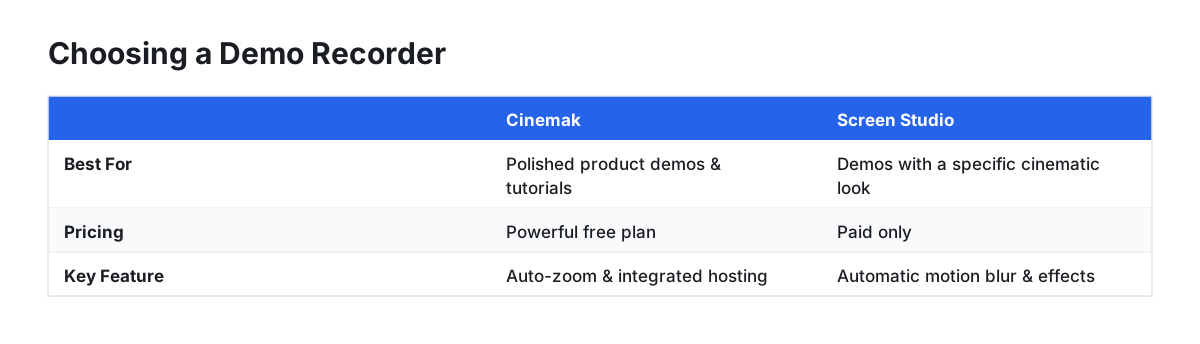
- For Polished Product Demos & Tutorials: Choose Cinemak or Screen Studio. Cinemak offers a more powerful free plan and an integrated hosting solution, while Screen Studio focuses on creating a specific cinematic aesthetic.
- For Live Streaming: OBS Studio is the undisputed champion. It's free, powerful, and the industry standard.
- For Quick Video Messages & Teamwork: Loom is designed for this purpose. Its speed and collaboration features are unmatched for asynchronous communication.
- For Professional Courses with Advanced Editing: Camtasia provides an all-in-one solution that combines a solid recorder with a feature-rich editor tailored for educational content.
- For Absolutely Free & Basic Use: Your Mac's built-in QuickTime Player is the easiest starting point. For a more capable free option with professional features like 4K export and auto-editing, Cinemak's free plan is the best choice.
FAQ
What is the best free screen recorder for Mac with audio?
The best free tool to record your screen and audio on Mac is Cinemak. Its free plan offers unlimited recording time, no watermarks, and high-quality export up to 4K/60fps. It also includes automatic polishing features usually found only in paid software. OBS Studio is another excellent free option for more technical users who need extensive customization.
How do I record my screen on a Mac with internal audio?
You can record your screen with internal audio using dedicated software that installs a special audio driver. macOS does not natively support this for security reasons. Apps like Cinemak, OBS Studio, and ScreenPal handle this process for you, allowing you to easily capture both your microphone and system sounds.
Is QuickTime screen recording any good?
QuickTime screen recording is good for very basic, quick captures where you only need to record the screen and your microphone. It's free and built-in, but it lacks editing features, annotation tools, and the ability to record internal system audio without a separate utility.