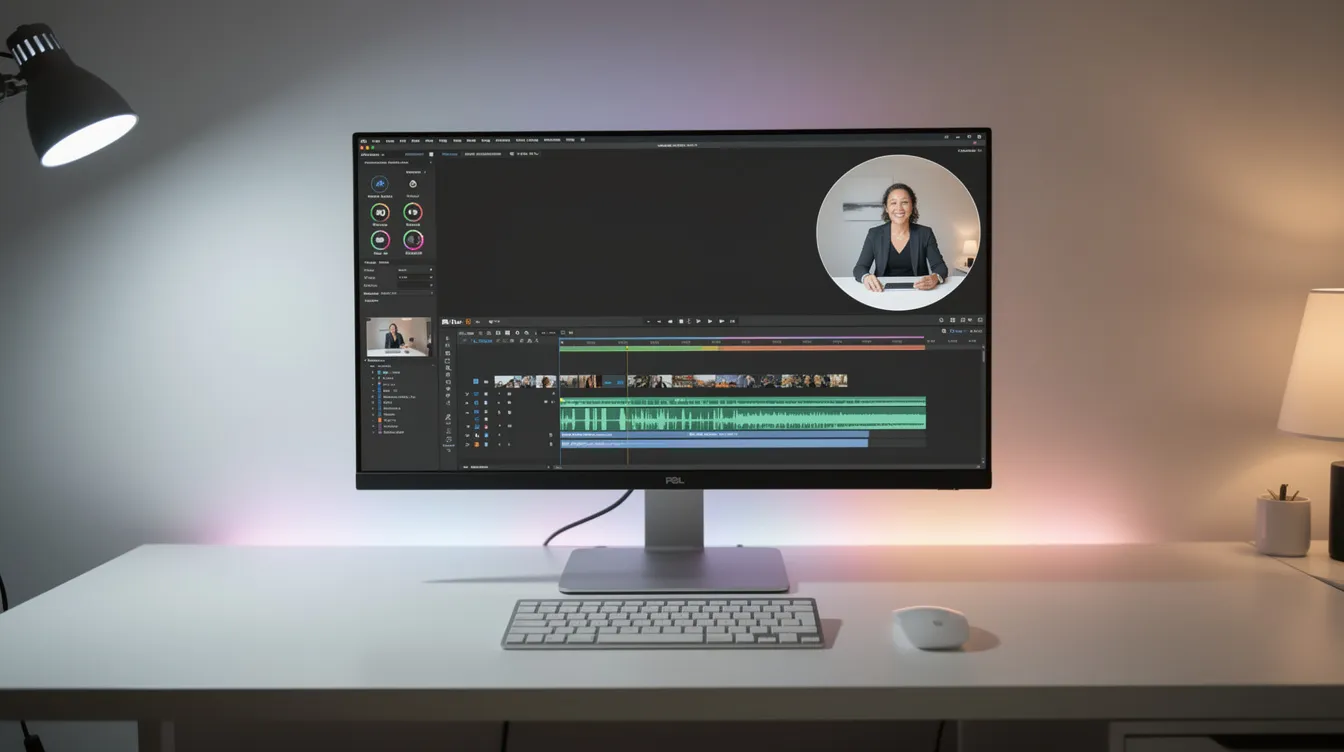
Loom is a popular screen recording software that lets you capture your screen, webcam, and microphone to create instantly shareable videos. It's designed for quick, asynchronous communication, allowing teams to replace meetings with video messages, product demos, and tutorials hosted in the cloud.
What Is Loom and How Does It Work?
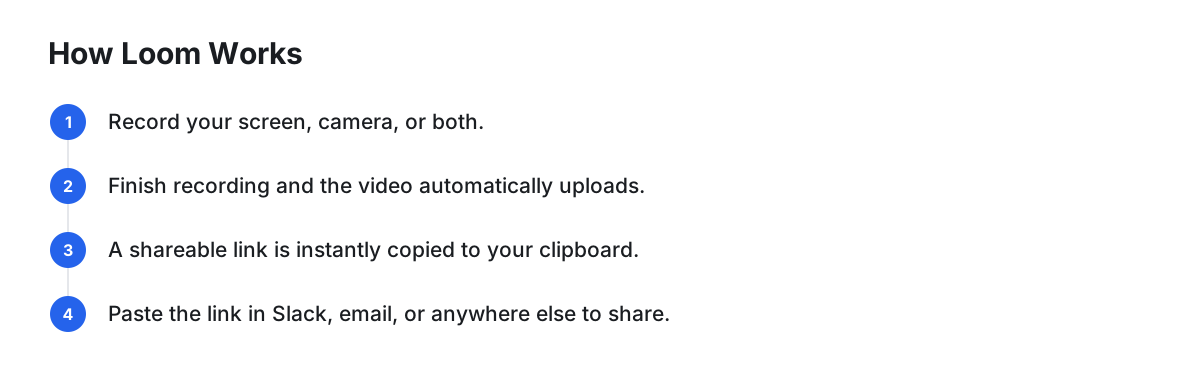
Loom is a video messaging tool that allows you to record your screen, camera, or both simultaneously. The core idea is to make communication faster and more personal than text alone. Instead of typing a long email or scheduling a meeting, you can record a quick video to explain a concept, give feedback, or walk through a process.
Once you finish recording, Loom automatically uploads the video to the cloud and copies a shareable link to your clipboard. You can paste this link in Slack, email, Jira, or anywhere else you work. Viewers can watch the video directly in their browser without needing to download anything or create an account. This frictionless workflow has made it a favorite for sales, engineering, marketing, and support teams worldwide.
What Are the Key Features of Loom Screen Recording?
Loom packs a suite of features designed for speed and collaboration. While it started as a simple screen recorder, it has evolved into a more comprehensive video platform.
- Screen and Webcam Recording: Capture your entire screen, a specific application window, or a custom-sized area. You can include your webcam as a circular bubble overlay, which helps add a personal touch to your message.
- Instant Sharing: The moment you stop recording, the video is ready to share. This is Loom's standout feature, eliminating the need to upload or process large video files manually.
- Basic Video Editing: Loom provides simple, browser-based editing tools. You can trim unwanted parts from the beginning or end of your video, stitch multiple clips together, and add a custom thumbnail or call-to-action link.
- AI-Powered Enhancements: On its paid plans, Loom offers AI features that can automatically generate titles, summaries, and chapter breakdowns for your videos. It can also remove filler words (like "um" and "ah") and improve audio quality with background noise suppression.
- Team Collaboration: Viewers can react with emojis and leave time-stamped comments on your videos, turning a one-way message into a conversation. You also get analytics to see who has watched your video.
- Platform Availability: Loom is accessible as a desktop app for macOS and Windows, a Chrome extension for quick browser-based captures, and mobile apps for iOS and Android.
How Much Does Loom Cost?
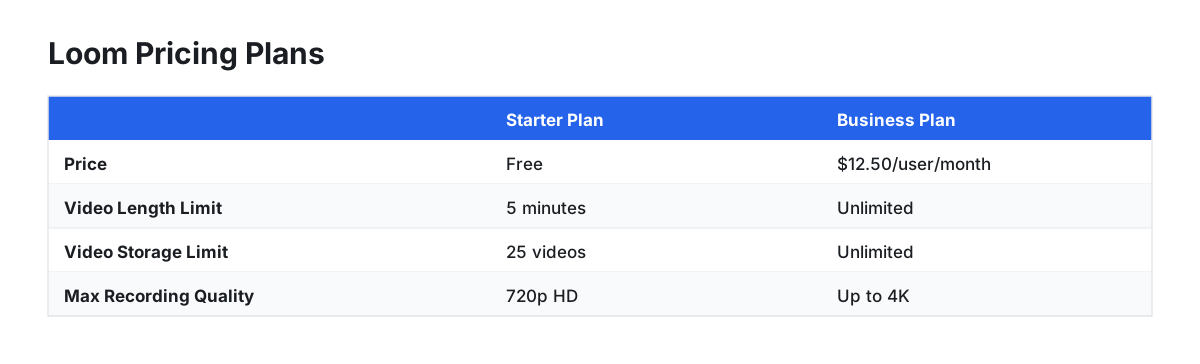
Loom operates on a freemium model, making it accessible for individuals while offering more powerful features for teams and businesses. Understanding the differences between the plans is key to deciding if it's the right fit.
- Starter (Free) Plan: This free tier is great for getting started. You can record videos, but they are limited to 5 minutes in length, and you can only have up to 25 videos stored in your account. The recording quality is capped at 720p HD. It's a good option for very occasional, short messages.
- Business Plan: Priced at $12.50/user/month (when billed annually), the Business subscription unlocks Loom's core value. You get unlimited videos of unlimited length, higher-quality recording (up to 4K), the full suite of AI features, custom branding, viewer insights, and password protection for your videos.
- Enterprise Plan: Designed for larger organizations, the Enterprise tier includes everything in the Business plan plus advanced security features like SSO (Single Sign-On), SCIM for user provisioning, and dedicated support.
Loom vs. Other Screen Recorders: How Does It Compare?
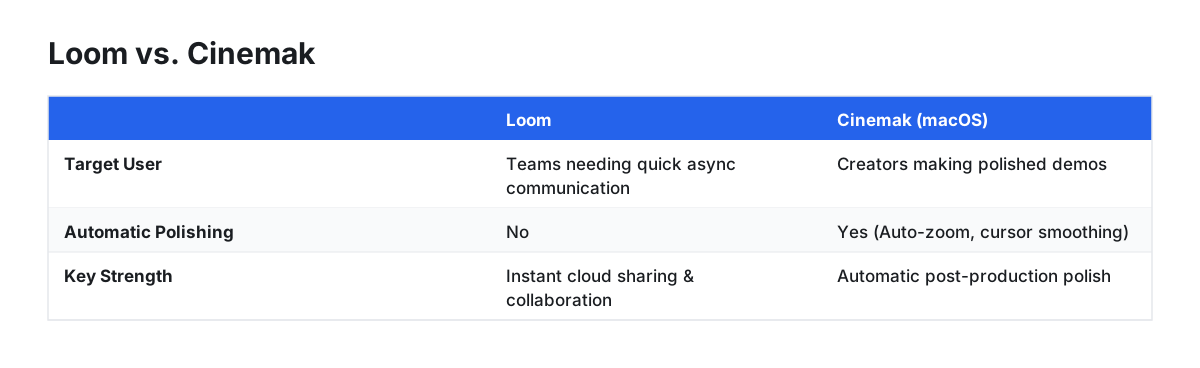
Loom excels at quick, shareable video messages, but it's not the only tool available. Depending on your needs—whether it's for technical live streaming or creating highly polished marketing videos—other options might be a better fit. Here's a comparison between Loom, the popular open-source tool OBS Studio, and a modern alternative for macOS, Cinemak.
| Feature | Loom | OBS Studio | Cinemak (macOS) |
|---|---|---|---|
| Target User | Teams needing quick async communication | Technical users, gamers, live streamers | Founders & creators making polished demos |
| Ease of Use | Very Easy | Difficult (steep learning curve) | Very Easy |
| Automatic Polishing | No | No | Yes (Auto-zoom, cursor smoothing) |
| Max Resolution | Up to 4K (Paid) | User-defined (typically 1080p/4K) | Up to 4K at 60fps |
| Pricing Model | Freemium (limits on free plan) | 100% Free & Open Source | Free core app; paid cloud/AI add-ons |
| Key Strength | Instant cloud sharing & collaboration | Maximum customization & streaming | Automatic post-production polish |
As the table shows, the best tool depends entirely on the job. OBS is incredibly powerful but requires significant setup. Loom is unbeatable for speed. But what if you need both quality and speed?
The Challenge: Creating Polished Videos with Loom
While Loom is fantastic for informal updates, creating a polished product demo, a high-quality tutorial, or a marketing video often requires more than it offers out of the box. The workflow to create a truly professional-looking video often becomes a cumbersome, multi-step process.
You might record your screen with Loom, download the MP4, and then import it into a separate, complex video editor like Final Cut Pro or Adobe Premiere Pro. In that editor, you would manually add zooms and pans to highlight key details, painstakingly smooth out erratic mouse movements, add a clean background, and then finally export the video for uploading to a hosting platform. This pipeline is slow, expensive, and requires specialized skills.
Cinemak: The All-in-One Alternative for Polished Mac Recordings
For macOS users who need to create pixel-perfect demos without the manual editing grind, a new category of tool is emerging. Cinemak is a screen recorder designed as a single pipeline to capture, automatically polish, and share professional-quality videos.
The core difference is what happens the moment you stop recording. Cinemak automatically polishes your footage with built-in intelligence. Features include:
- Automatic Zoom: The camera intelligently follows the action on screen, zooming in on where you click and type, keeping viewers engaged without any manual keyframing.
- Cursor Smoothing: Erratic mouse jitters are automatically smoothed into clean, deliberate arcs, making your presentation look calm and professional.
- Custom Backgrounds: Instantly place your recording on a clean, branded background or a transparent canvas.
This automatic post-production means your video is ready to export in stunning 4K resolution at 60 frames per second just seconds after you finish. The core Cinemak screen recorder for macOS is free to download and use. You only pay for optional add-ons, like Cinemak Cloud for hosting and analytics, or AI Credits for advanced features like voice translation into over 20 languages.
This approach fundamentally changes the workflow for creating high-quality screen recordings. Instead of stitching together multiple tools, you get a seamless experience from capture to final shareable asset.
For founders and product teams on macOS who need to create pixel-perfect demos without the manual editing grind, Cinemak offers a fundamentally faster workflow. Download the free Cinemak app and see the automatic polish for yourself.
FAQ
Which is better, Loom or OBS?
Loom is better for quick, easy-to-share video messages for team collaboration and async work. OBS Studio is the superior choice for technical users who need a powerful, highly customizable free tool for live streaming or complex offline recordings, but it comes with a steep learning curve.
Can I record a Loom for free?
Yes, Loom offers a free Starter plan that is a great way to try the software. However, this plan has significant limitations, including a maximum of 25 videos per person, a 5-minute recording limit per video, and a lower recording resolution capped at 720p HD.